
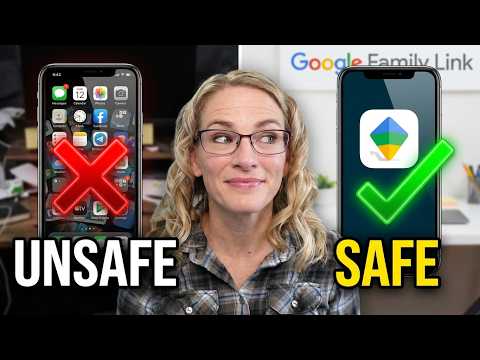
Setting up an Android phone for your child doesn’t have to be stressful! In this video, Sarah Kimmel (Family Tech) walks you through the complete process of using Google Family Link to create a safe digital environment. Whether you are setting up a brand new device or managing a phone your child already has, we cover everything from account creation for kids under and over 13, to advanced monitoring with tools like Bark and Boomerang.
What you’ll learn:
How to use Google Family Link as your base parental control layer.
The difference in rules for children under vs. over 13.
How to handle app approvals and time limits.
Integrating third-party apps (Bark, Boomerang, and carrier controls) for maximum safety.
Protecting the device even when it’s off your home Wi-Fi.
Resources mentioned:
Google Family Link
Bark Parental Controls
Boomerang Parental Controls
Verizon Smart Family
Don’t forget to subscribe for new tech tips every Thursday!
Timestamps
0:00 – Introduction to Android Parental Controls
0:38 – Meet Sarah Kimmel, Family Tech Expert
0:51 – Understanding Google Family Link Basics
1:07 – Important: The 13-Year-Old Limitation
1:31 – Setting up a Google Account (Over 13)
1:55 – Setting up a Google Account (Under 13)
2:36 – Pre-installing & Approving Apps
3:31 – Linking the Child’s Device to your Parent App
4:30 – Adding School Accounts
5:00 – YouTube vs. YouTube Kids Controls
5:21 – Managing Time Limits & App Installs
5:50 – Adding a Monitoring Layer (Boomerang & Bark)
7:07 – Why Boomerang is Great for App Control
7:32 – Preventing “Side Loading” Apps
7:58 – GPS Tracking Features
8:15 – Avoiding App Conflicts
9:06 – Protecting Devices on Cellular Data (VPNs & Carrier Apps)
10:04 – Final Setup Steps & Handing Over the Phone
10:47 – Wrap-up & Where to Find More Tips
Recommended 3rd party parental control apps discount links
Bark –
Qustodio –
Watch a breakdown of parental control apps
If you are looking for a KIDS SAFE smartphone, check out Troomi –
VIDEO REVIEW of TROOMI –
Sarah Kimmel is a Microsoft Certified IT Manager, who is also a mom. She currently helps families understand and manage the technology in their homes through YouTube Videos, Instagram posts, podcasts, and her website Family Tech Zone. She can also be found as a family tech expert on various TV news shows and podcasts.
SHOP MY FAVORITE PRODUCTS
Amazon –
Bark Parental Controls –
Pinwheel Smartphone for kids –
Troomi Smartphone for kids –
CONNECT WITH OTHER PARENTS
On Facebook –
On Reddit –
On Discord –
CONNECT WITH SARAH ON SOCIAL
Instagram:
Facebook:
Twitter:
Pinterest:
TikTok:
PODCAST
Spotify –
Apple Podcasts –
Google Podcasts –
BLOG
BUSINESS INQUIRIES
sarah@familytech.biz
#familytech #technology
free interactive guide available here:
Useless
Just finding this video to inform myself about Family Link but… I’d like to throw my two cents out there as an I.T. professional. I feel like you’ve got crazy overkill on the apps. You’ve got Verizon parentals, Boomerang, AND Bark? You’re paying $139-360 a year on several apps that have overlapping features. Sometimes… less is more.
What a pain for parents these days!
Awesome video.
Family link doesn’t have an option for me to only allow approved contacts. How would I do that?