
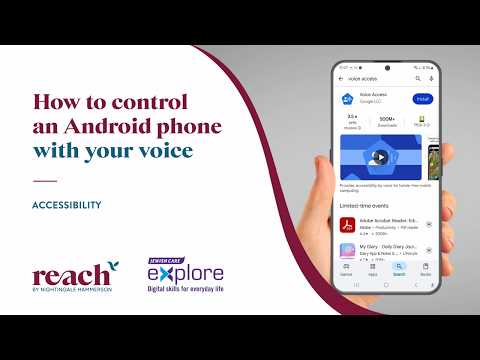
Are you struggling to tap your phone screen or want to go fully hands-free? In this tutorial, we’ll show you how to set up and use Voice Access on Android – Google’s free accessibility app that lets you control your phone with just your voice.
What You Will Learn in the Video
🟣 How to download and install the Voice Access app from the Play Store
🟣 How to complete the Voice Access app setup and enable permissions
🟣 How to use Google Voice Access commands for texting, calling, and navigation
🟣 How to adjust Android voice control settings for easier use
🟣 Tips to make the most of Android accessibility features
Chapters
0:00 Intro – Why use Voice Access on Android
0:14 How to download the Voice Access app from the Play Store
0:33 Setting up the Voice Access app
1:00 Turning on Voice Access and permissions
1:27 Sending a text with Google Voice Access commands
2:12 Making a phone call hands-free
2:40 Navigating apps and using the grid system
3:30 Pausing Voice Access and finding more commands
4:10 Wrap up – Using Android Accessibility features
Extra Tip
Voice Access is ideal if you find tapping tricky, but remember to enable “Listen for commands whenever my screen is on” in the Android accessibility settings for smoother use.
For more videos on living better at home for longer, visit:
🔗 Website:
🔗 Follow Reach by Nightingale Hammerson:
📍 LinkedIn:
📍 Facebook:
Partnerships
This video is brought to you by Reach by Nightingale Hammerson, supporting older people to live better at home for longer in collaboration with Jewish Care.
🌐 Website:
📍 LinkedIn:
📍 Facebook:
📍 Instagram:
Created in partnership with Reach by Nightingale Hammerson to support healthy ageing and independent living.
#VoiceAccess #AndroidAccessibility #GoogleVoiceAccess #VoiceControl #AccessibilityFeatures #ReachByNightingaleHammerson
this is too complicated for my elderly parent.
Thanks for this explainer
❤
Voice Access is on
Voice Access is on